
How to trim clips before merging
Trim away the pause before a clip starts or the extra seconds at the end. You can do this for each clip in Merge Videos before joining them into one MP4.
Trim the start or end of a clip
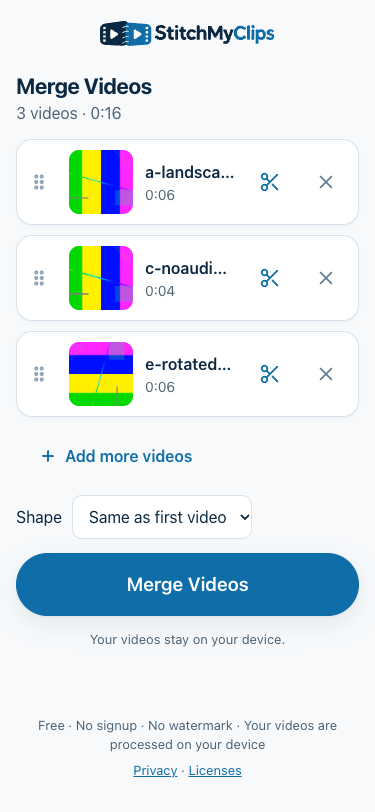
- Open Merge Videos, choose Add Videos and select your clips.
- In the clip list, choose the scissors button next to the clip you want to trim.
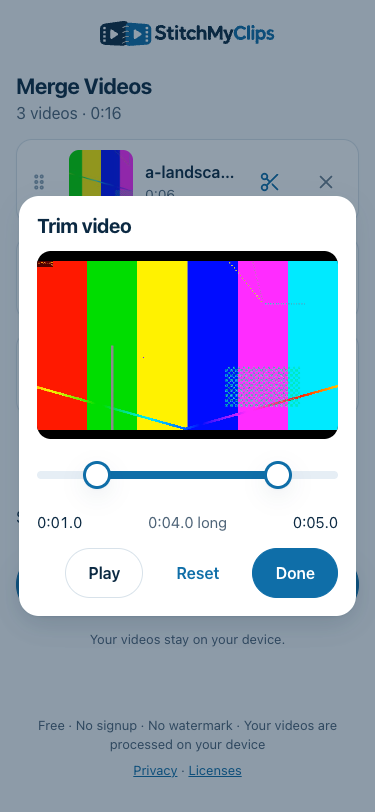
- Move the Start and End handles to keep the part you want. The window shows both times and the kept length.
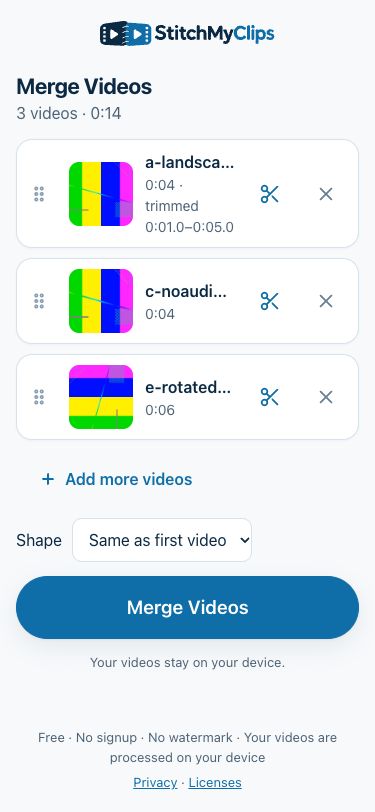
- Choose Play to preview the kept part. Choose Reset to return to the full clip, or Done to keep your trim.
- Repeat for the other clips. Check their order, choose Merge Videos and wait for the result. Play it back, then choose Download Video.
Remove a section from the middle
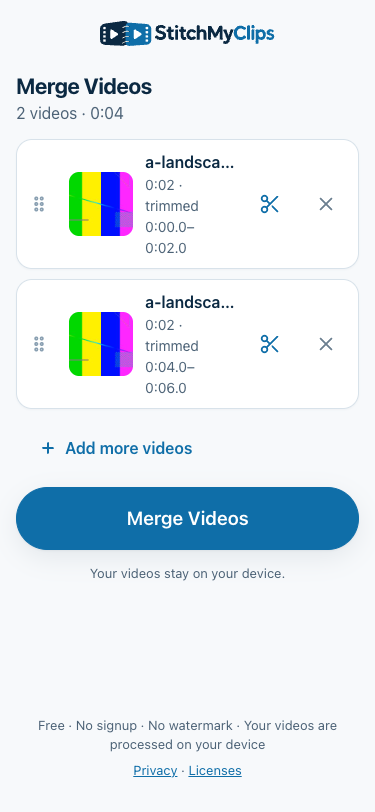
The trim window keeps one continuous part of a clip. To skip a middle section, add the same file twice:
- Add the video, then choose Add more videos and select the same file again.
- Trim the first copy to end just before the section you want to remove.
- Trim the second copy to start just after that section. Keep the two copies next to each other in the list.
- Merge and play across the join to check it. The picture will jump from the end of the first kept part to the start of the second; no transition is added.
Precision and limits
- The handles move in 0.1-second steps, and each kept part must be at least 0.5 seconds long.
- You can add up to 20 clips. Each copy of a file counts as another clip.
- The total kept length must be within 10 minutes.
- The size limit is about 2 GB of original files. Trimming here does not reduce the size counted toward that limit. Adding the same file twice counts its full size twice.
You can also trim and save a single clip. Add it, choose the scissors, set your trim and choose Done, then Save Video. Download the finished MP4 when it is ready.
Before you start
Use an up-to-date desktop Chrome for the steps verified here. The tool’s listed browser support also includes Safari, Edge and Firefox, with iOS 26 or later on iPhone and iPad. Phone touch controls, HDR colour, audio sync and saving still need real-device checks.
If your clips have different shapes, see how portrait and landscape videos fit together before choosing the output shape.