
Merging portrait and landscape videos
When you join tall and wide clips, they need to share one output shape. Merge Videos fits each clip inside that frame with black bars where needed, keeping the whole picture visible.
The examples below come from real Chrome exports of the same two synthetic clips: a wide clip first, then a tall clip.
Choose the shape before merging
- Open Merge Videos and choose Add Videos.
- Add your clips and arrange them in the order you want.
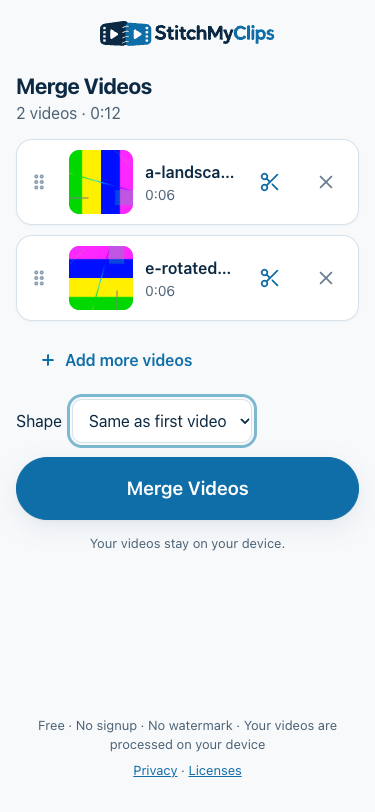
- When their shapes differ, use the Shape menu below the list. Choose Same as first video, Portrait (tall) or Landscape (wide).
- Choose Merge Videos. Play the result to check both shapes, then choose Download Video.
What each choice looks like
Same as first video
This follows the first clip’s displayed shape, including its rotation. It keeps smaller first clips at their original size and scales larger ones down to a long side of at most 1920 pixels. Reordering the first clip changes this default.

Portrait (tall)
This makes a 1080 × 1920 video. A wide clip fits across the middle, with black space above and below it.

Landscape (wide)
This makes a 1920 × 1080 video. A tall clip fits in the middle, with black space on either side. It matches the default in this example because our first clip is already wide.

Which shape should you choose?
Portrait is a useful starting point for viewing on upright phones. Landscape suits TVs, laptops and wide players. These are viewing suggestions, not guarantees about a platform’s upload rules.
If most of your clips share a shape, put one of those first and use Same as first video. That gives the matching clips more of the frame. You can reduce bars on future videos by recording them in the same orientation.
Why the black bars stay
A wide rectangle cannot fill a tall one without cutting off the sides or stretching the picture. Merge Videos preserves the proportions and fits the whole clip inside instead. There is no crop, zoom or blurred-background control.
Fixed Portrait and Landscape outputs can enlarge small clips, so they may look softer. If you want to crop a clip beforehand, use an editor you already trust and check that the important parts remain visible.
These dimensions and fitting examples were checked in desktop Chrome. Real-phone HDR colour, audio sync, touch controls and saving to Photos or Gallery still need separate checks. iPhone and iPad require iOS 26 or later.
To remove pauses or skip an unwanted section first, follow the guide to trimming clips before merging.